Track Chat Widget Activity Using Google Analytics 4 (GA4)
Modified on Mon, 19 Jan at 9:13 PM
What is Chat Widget GA4 Tracking?
LANA Software Chat Widget can be embedded across various platforms, including funnels, websites, and WordPress sites. By integrating GA4 (Google Analytics), you can track user interactions with the Chat Widget, enabling better insights into user behavior and engagement.
Key Benefits of GA4 Tracking for Chat Widget
Enhanced User Insights: Monitor how users interact with the Chat Widget to optimize engagement strategies.
Performance Monitoring: Identify and address potential issues in the chat experience.
Data-Driven Decisions: Leverage analytics to make informed decisions about chat functionalities.
Seamless Integration: Combine Chat Widget and GA4 scripts without conflicts.
Integrate Chat Widget with GA4 Tracking
Make sure Google Analytics 4 (GA4) is already installed on the site or funnel where your Chat Widget will appear. No additional configuration is required for the Chat Widget to send events to GA4.
This applies to all platforms — including LANA Software sites, funnels, WordPress, Wix, Shopify, and others.
You do not need to install GA4 separately for the widget to work.
Follow this structured setup to install GA4 tracking, embed the chat widget, and begin capturing custom analytics events related to widget usage.
1. Add GA4 Global Site Tag
Embed the following code in the <head> section of your webpage or in a GTM Custom HTML tag.
Key Notes:
This script loads the GA4 library and initializes it using your GA4 measurement ID: your-GA-code.
dataLayer is used for storing events and sending them to GA4.
2. Embed the Chat Widget
Insert this snippet in the <body> section of your site to load the chat widget.
Click on the "Get Code" button, then navigate to "Via GTM" section to find this snippet.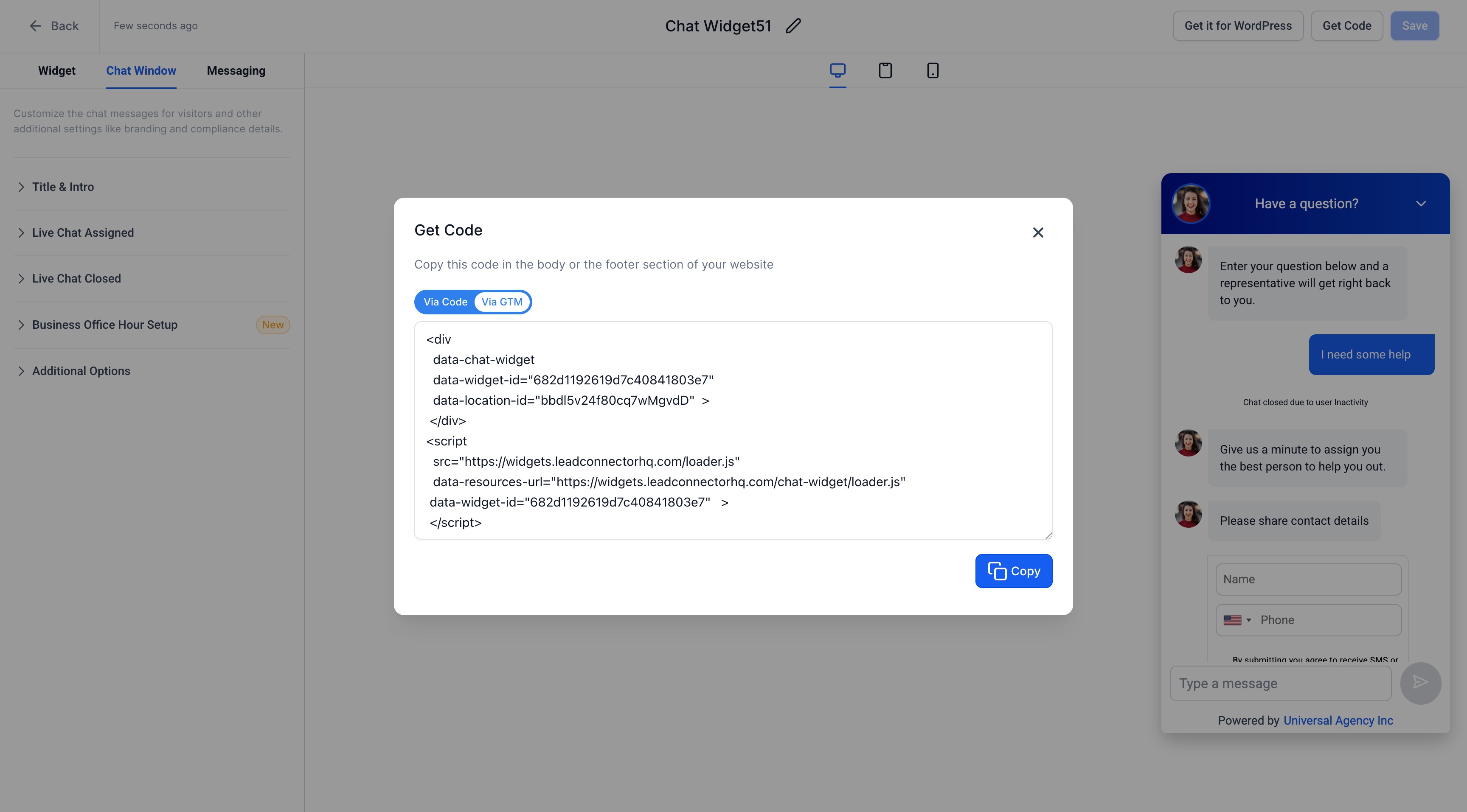
Attributes Breakdown:
data-widget-id: Unique identifier for the widget.
data-location-id: Corresponds to your business/location.
3. Add GA4 Custom Event Tracking Script
Paste this script below your chat widget embed to enable event tracking for widget interactions.
Event Reference for GA4
Understanding what each event tracks helps you validate and use the data more effectively in GA4.
| Event Name | Trigger Condition | Category | Label |
widget-open | When the widget is opened | Live Chat | Widget Open |
| widget-close | When the widget is closed | Live Chat | Widget Close |
| form-submit | When a chat form is submitted | Live Chat | Form Submitted |
Testing & Debugging Tips
Use these techniques to confirm your event tracking is correctly set up and working in real time.
Google Tag Assistant Extension: Monitor events as you interact with the widget.
GA4 DebugView: Track real-time events in your Google Analytics dashboard.
Network Logs: Use browser DevTools → Network tab to verify event payloads.
Live Test: Open, close, and submit the chat form to validate the respective events.
Was this article helpful?
That’s Great!
Thank you for your feedback
Sorry! We couldn't be helpful
Thank you for your feedback
Feedback sent
We appreciate your effort and will try to fix the article